


How to Mirror Android to Mac Without an App
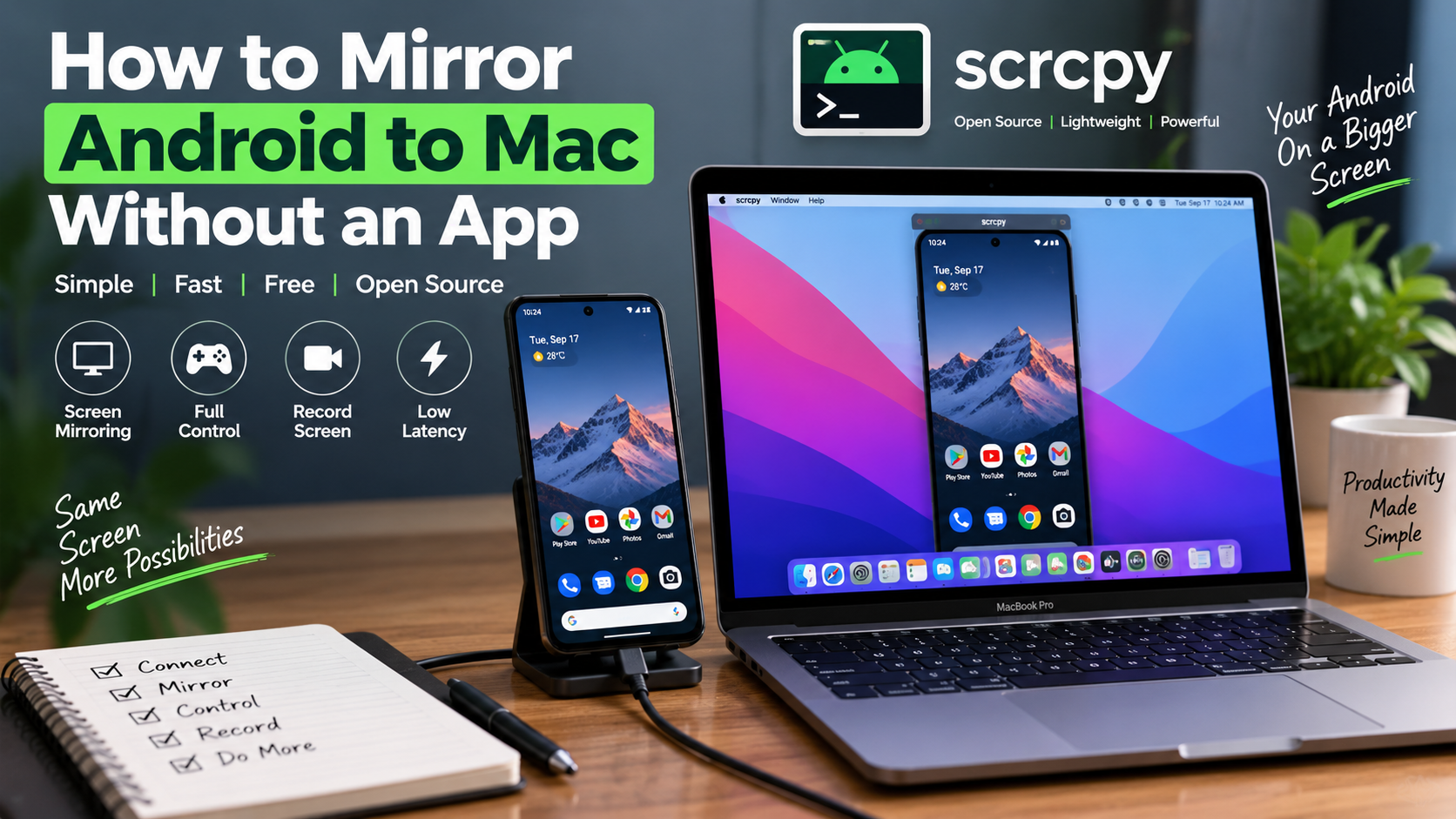
Mirroring an Android phone to a Mac used to mean digging through the App Store for something clunky, laggy, or locked behind a paywall. The good news is you do not need a traditional "app" at all. A small open source tool called Scrcpy handles the entire job, and it runs from your Terminal instead of sitting in your Applications folder like typical software.
If you own a Mac and an Android phone, this guide walks you through the whole process from start to finish.
Why Skip the App Store Route
Most screen mirroring apps you find in a search ask for a subscription after a short trial. Others inject ads into the mirrored view or slow your phone down while running in the background. A few even ask for permissions that have nothing to do with mirroring a screen.
Scrcpy avoids all of that because it is not really an app in the traditional sense. It is a lightweight command line tool that creates a direct link between your Android phone and your Mac using ADB, which stands for Android Debug Bridge. This is the same connection developers use to test apps on real devices, so it is stable and built for exactly this kind of job.
What You Need Before Starting
You do not need much. A Mac running macOS 10.11 or later works fine, and almost any Android phone from the last several years qualifies as long as it runs Android 5.0 or newer.
You will also need Homebrew installed on your Mac. If you have never used Homebrew before, it is simply a package manager that lets you install command line tools with one short command instead of downloading installers manually.
Installing Scrcpy on Your Mac
Open Terminal, which you can find using Spotlight search. If Homebrew is not already installed, paste this command and press enter:
/bin/bash -c "$(curl -fsSL https://raw.githubusercontent.com/Homebrew/install/HEAD/install.sh)"
Once Homebrew finishes installing, run this single line:
brew install scrcpy
That is the entire installation process. No downloads, no drag and drop, no security warnings asking you to approve an unfamiliar app in System Settings.
Turning On USB Debugging on Your Phone
Before your Mac can talk to your Android phone, you need to enable a hidden developer setting. This sounds more technical than it actually is.
Go to Settings on your phone, then tap About Phone. Look for Build Number and tap it seven times in a row. A message will pop up saying you are now a developer. Head back to the main Settings menu, open Developer Options, and switch on USB Debugging.
This setting is completely reversible. You can turn it off the moment you are done mirroring your screen, and nothing about your phone changes permanently.
Connecting Your Phone to Your Mac
Plug your Android phone into your Mac using a USB cable. Your phone screen will show a popup asking if you trust this computer and want to allow USB debugging. Tap Allow.
Back in Terminal, type scrcpy and hit enter. Within a couple of seconds, your entire phone screen appears in a window on your Mac. You can now click and type using your Mac's mouse and keyboard exactly as if you were tapping the phone directly.
Going Wireless After the First Connection
Plugging in a cable every time gets old fast, so here is how to cut it loose after your first successful connection.
With your phone still connected through USB, type this into Terminal:
adb tcpip 5555
Next, find your phone's IP address. This is usually under Settings, then Wi-Fi, then tapping your connected network name. Write that number down.
Type the following, replacing the numbers with your actual IP address:
adb connect 192.168.x.x:5555
Once that connects successfully, unplug the USB cable. Type scrcpy one more time in Terminal, and your phone will mirror wirelessly as long as both devices share the same Wi-Fi network.
Controlling Your Phone from Your Mac
Once your screen is mirrored, your Mac's trackpad or mouse takes over most of the basic controls. A left click works as a tap, and right clicking acts as the back button on your phone.
Typing on your Mac keyboard sends text directly into whatever app is open on your phone, which makes replying to long messages far less painful than typing on a small touchscreen. There are also a handful of shortcuts worth remembering, like using the key combination for home and back buttons, along with a quick screenshot shortcut that saves an image straight to your Mac.
Recording Your Screen Without Extra Software
If you ever need to record your phone screen for a tutorial, a bug report, or just to save a moment from a mobile game, you do not need a separate screen recorder. Adding a simple flag to the scrcpy command saves a full video recording directly to your Mac in MP4 or MKV format, with nothing stored on your phone at all.
A Real Use Case Worth Mentioning
I started using this setup mainly to test app builds without constantly picking up my phone and putting it back down. It turned into something I use almost daily now, whether I am reading messages during a work call or recording a quick demo clip for a client.
For anyone who wants a more detailed breakdown specific to Mac setups, including troubleshooting tips for connection drops, this guide on Android to Mac screen mirroring covers the Mac-specific steps in more depth than most general tutorials do.
Final Thoughts
Mirroring Android to Mac without an app sounds intimidating at first, but the actual process takes less time than downloading most apps from the App Store. Once Scrcpy is installed, the whole setup becomes second nature, and you get a faster, cleaner connection than most paid alternatives offer anyway.
If you spend a lot of time switching between your phone and your Mac throughout the day, this small change to your workflow is worth the ten minutes it takes to set up.
 Greek
Greek
 English
 Arabic
 French
 Spanish
 Portuguese
 Deutsch
 Turkish
 Dutch
Dutch
 Italiano
 Russian
 Romaian
 Portuguese (Brazil)